
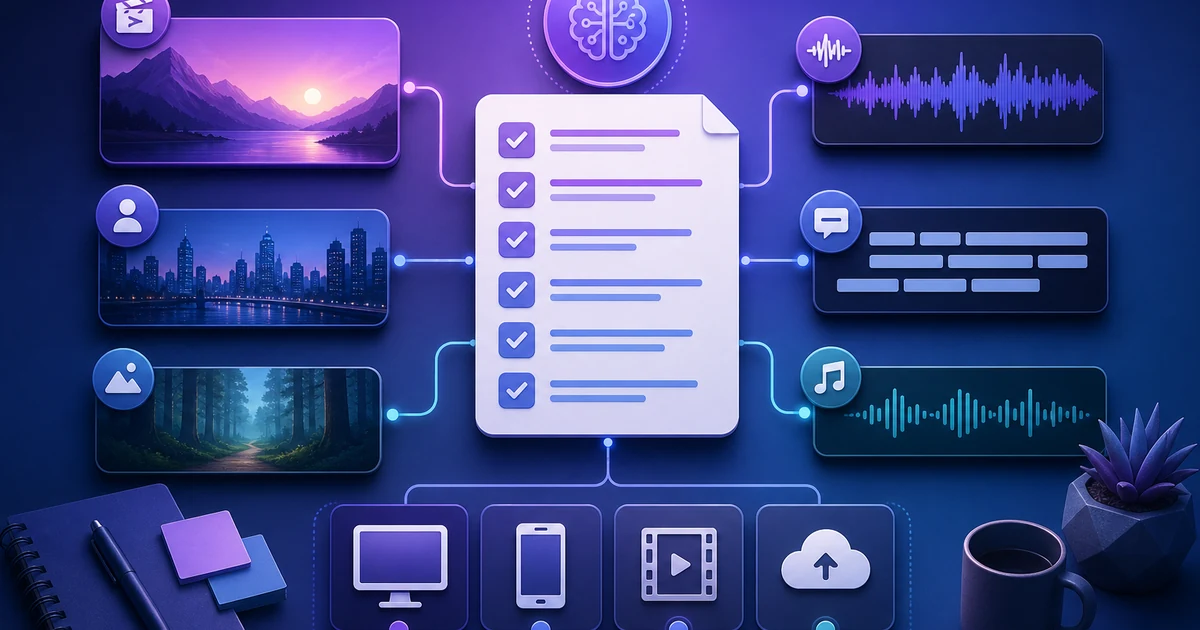
What you will build
This is not a click-by-click UI walkthrough. It is a preparation guide for creating a one-page production brief before starting a new VMAI video. Instead of screenshots, it gives you a reusable worksheet that works no matter which input mode you choose.
By the end, you will have:
- the video's goal and first viewer;
- the right starting input: idea, script, audio, or subtitle;
- a scene map with locked and flexible visuals;
- a sensitive-information check for your own media;
- voice, subtitle, and BGM rules;
- a review and render checklist.
Step 1: Write the video goal in one sentence
Start by completing this sentence:
"This video is for who, in which viewing situation, so they can understand or do what.
Examples:
| Situation | Goal sentence example |
|---|---|
| Product introduction | “A first-time visitor understands what kind of videos VMAI can create within one minute.” |
| Course recap | “Students remember the three most important points from a long lecture.” |
| Social promotion | “A muted viewer recognizes the problem in the first five seconds.” |
| Internal report | “The team quickly sees the campaign result and next action.” |
A narrow goal makes later decisions easier: number of scenes, caption density, visual style, music tone, and final export.
Step 2: Choose the starting input mode
VMAI supports new-video flows that start from an idea, script, audio, or subtitle file. Use the closest starting point for this project.
| What you already have | Start with | What to write in the brief |
|---|---|---|
| Only a topic or message | Idea | Let AI draft the script, but list three points that must appear |
| Approved narration text | Script | Record sentence length, pronunciation notes, and caption-length rules |
| Recording or lecture audio | Audio | Record recognition language, terminology, and silence-handling notes |
| Reviewed SRT/VTT | Subtitle | Decide whether timing should be preserved or only scene grouping should change |
Then write one line:
"This project starts with
______mode because______is already approved.
Step 3: Split the story into 5–7 scene slots
You do not need a finished script to plan scene roles. Keep it practical: five to seven slots are usually enough.
| Scene | Role | Must include | Media rule |
|---|---|---|---|
| 1 | Hook | Problem the viewer recognizes | Strong image or short phrase |
| 2 | Context | Why the problem matters | Explanatory visual is fine |
| 3 | Proof | Example, data, or real asset | Lock your own image if needed |
| 4 | Process | How the solution works | Step-by-step scene |
| 5 | Payoff | What changes after the solution | Before/after or finished result |
| 6 | CTA | What to do next | Short and direct |
When you review the generated VMAI draft, this table gives each scene a job. You are not just asking whether the scene looks good; you are asking whether it performs its role.
Step 4: Separate must-use media from flexible media
Divide images and assets into three groups.
- Must-use media: product photos, event photos, brand assets, founder or team images.
- Directed media: problem situations, work scenes, abstract comparisons.
- Flexible media: backgrounds, atmosphere, supporting visuals.
Before using your own media, check:
- Are emails, phone numbers, account names, customer names, or order IDs visible?
- Is small on-screen text safe to publish?
- Does one image carry too many messages?
- Will the subject survive wide and vertical crops?
When VMAI assigns your images to video segments, think separately about one image for one segment versus one image reused across multiple segments. In the brief, label “locked images” and “reusable images” so the review stage is faster.
Step 5: Define voice, subtitles, and BGM
The tone of a video often drifts in these three areas.
Voice
- Choose the actual narration language first.
- List words that may need careful pronunciation: numbers, abbreviations, product names, or terms of art.
- Decide whether the voice should feel quick and promotional or calm and explanatory.
Subtitles
- If muted viewing matters, treat subtitles as a primary message layer.
- Avoid long lines that are hard to read on mobile.
- For English, watch line length and reading rhythm. For Korean, watch spacing and line breaks so the sentence still feels natural.
BGM
- Pick only two or three mood words, such as calm, bright, tense, or trustworthy.
- Set a simple rule for when music is too loud against narration.
- Decide whether BGM belongs in the review draft or only in the final render.
Step 6: Build the review and render checklist
After generation, review with the checklist before reacting by taste.
- The target viewer understands the problem in the first five seconds.
- Every scene has one role from Step 3.
- Locked images were not replaced with generic visuals.
- Captions do not cover faces, products, charts, or the main subject.
- Voice and subtitle terminology matches the brief.
- BGM does not overpower narration.
- Review render and final render criteria are separated.
- Credit budget and plan limits have been checked.
Copy-ready brief template
Copy this into your next project note.
markdown# AI Video Production Brief

## 1. Goal
- Viewer:
- Viewing context:
- Action after watching:
- One-sentence goal:

## 2. Starting input
- Start mode: Idea / Script / Audio / Subtitle
- Already approved material:
- What AI can help decide:

## 3. Scene map
| Scene | Role | Must include | Media rule |
|---|---|---|---|
| 1 | Hook |  |  |
| 2 | Context |  |  |
| 3 | Proof |  |  |
| 4 | Process |  |  |
| 5 | Payoff |  |  |
| 6 | CTA |  |  |

## 4. Images and assets
- Must-use images:
- Scenes where AI media selection is fine:
- Sensitive-information check:

## 5. Voice, subtitles, and BGM
- Narration language:
- Pronunciation notes:
- Subtitle rules:
- BGM mood:
- BGM volume rule:

## 6. Review and render
- Must-replace conditions:
- Areas captions must not cover:
- Review render setting:
- Final render setting:
- Credit budget:
Next step
After filling the brief, use Getting Started with VMAI to see the creation flow in practice, or continue with Plan AI Video Render Settings Before Export when you need output criteria. For the strategy behind the worksheet, read The One-Page Brief That Makes AI Video Output Easier to Use.
Tutorial Complete!
You've read this tutorial. Move on to the next step.
Found this tutorial helpful?
Subscribe to get notified when we publish new tutorials and guides. No spam, unsubscribe anytime.
Comments
Please login to leave a comment
LoginNo comments yet. Be the first to comment!